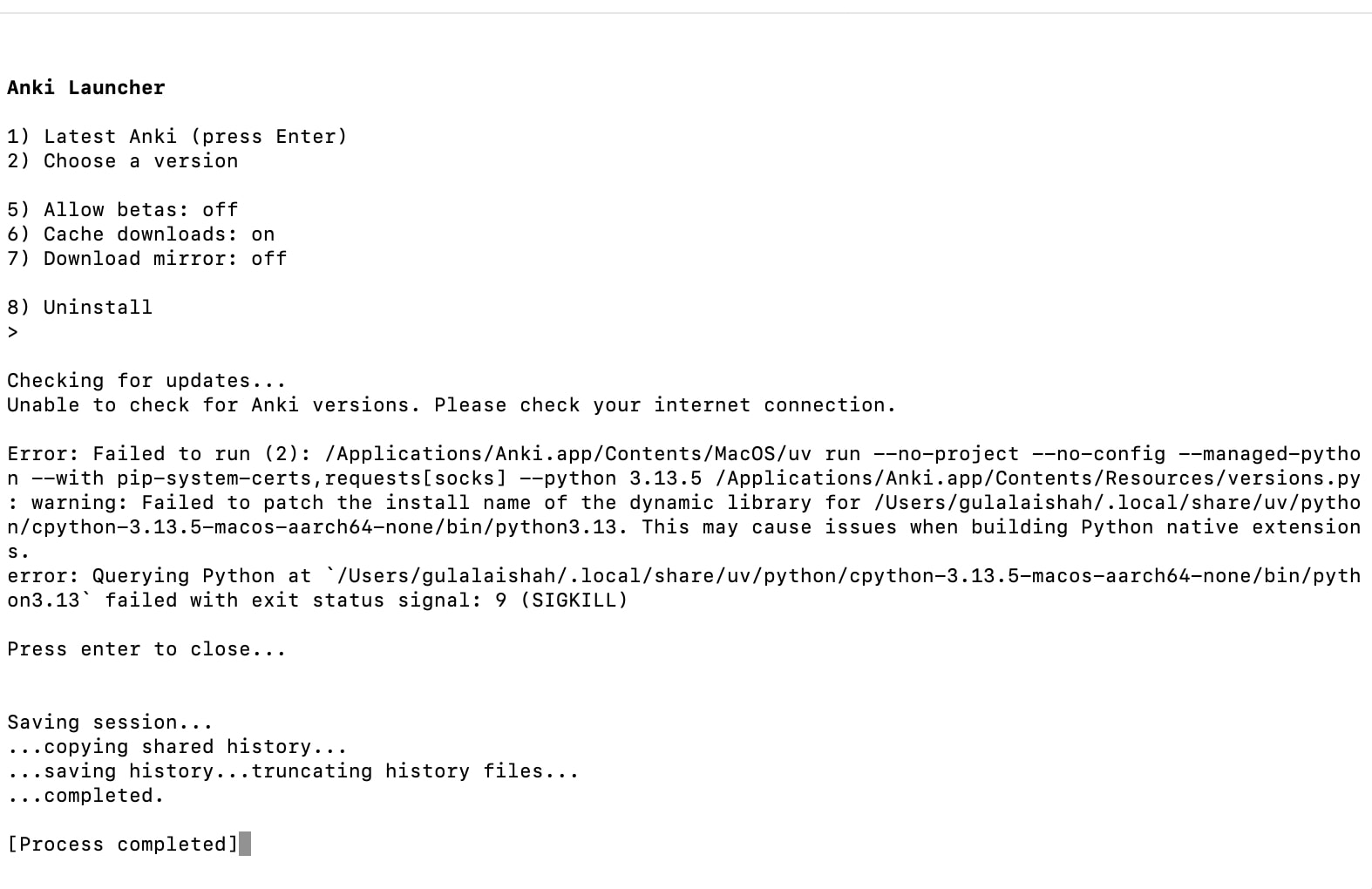
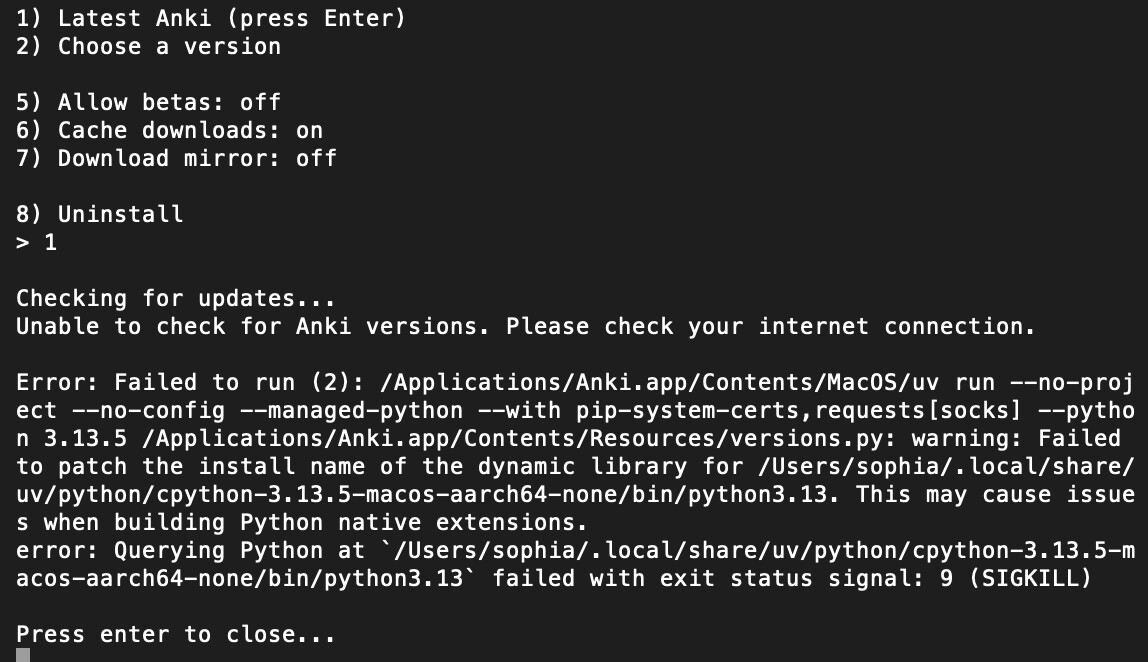
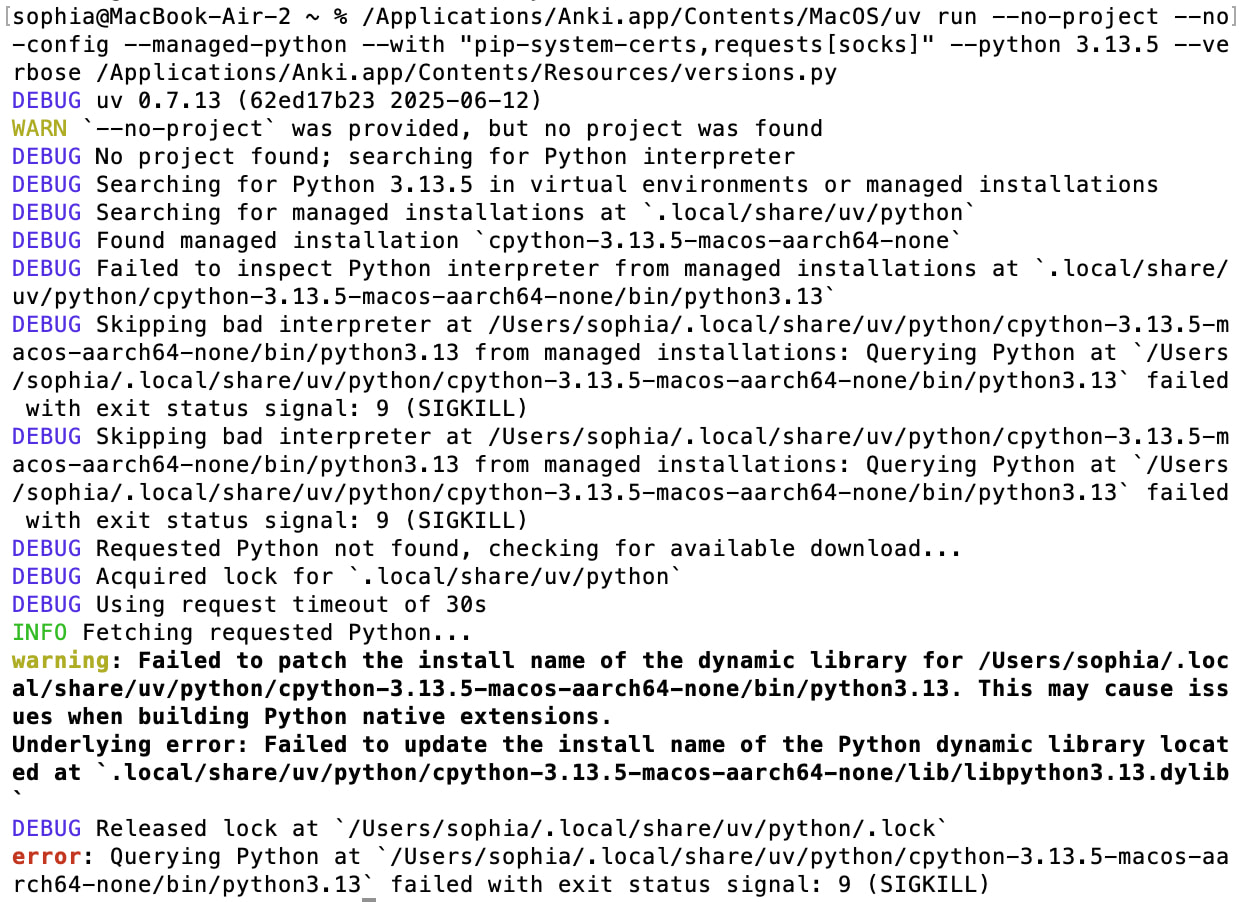
I’m a med student and have been crashing out about this for the past 3 days, it doesn’t help that I’m absolutely hopeless at tech so I have no idea what this error even wants me to do. Any help would be so so appreciated, thank you!!!
Please also search the forum for “Failed to patch the install name of the dynamic library” (which brings up issues with Conda/Anaconda architecture mismatches).
Did you migrate the contents of your old computer onto your new computer? (That is, did the migration possibly copy over old Intel-architecture conda/anaconda/python onto your new Apple silicon-architecture computer?)
Hello, I am having the same issues as the original poster, and I did migrate the contents of my old intel macbook to my new silicon one (which is also a 2025 M4 on Tahoe 26.1). Just wondering if there is anything specific I could try if that is my situation. I have looked at several threads with similar errors but unfortunately nothing has seemed to work (like uninstalling and reinstalling new launcher, deleting AnkiProgramFiles, conda deactivate in Terminal, etc).
Again, I’m hoping that someone else will have advice on specific things to do. I imagine that there are old, Intel files that need to be removed, but I’m not sure where they are. I’m hoping that someone else will know exactly which files need to be deleted and where they are located. Otherwise, the below steps try to find them them by trial and error.
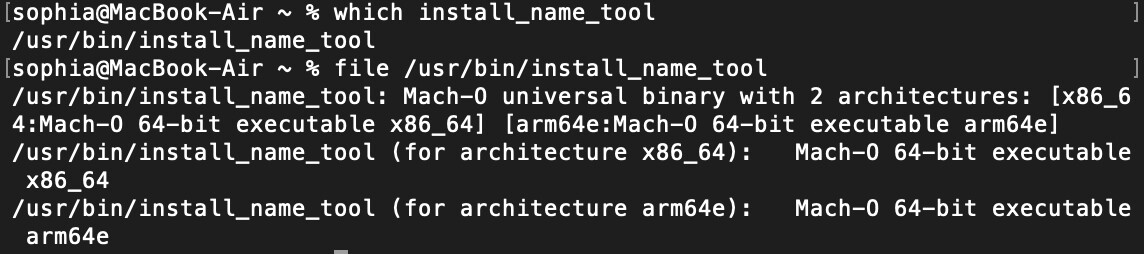
In Terminal could you please try running which install_name_tool and then file <fully qualified path of install_name_tool>?
One possiblity is that an Intel-only version of install_name_tool might be installed and being run on your system. The above commands look for the specific copy of install_name_tool that gets used and then checks to see what architecture it is for. (From the above output on my system, install_name_tool is located at /usr/bin/install_name_tool, and it is a universal binary that runs on both Intel and Apple Silicon systems.)
Thank you. Could you please confirm, you are seeing the same “Failed to patch the install name” error message that the OP saw?
Would it be possible for you to post the error message you are seeing?
Since it seems that your install_name_tool is okay, I would next look at/for the dynamic library that it is trying to access. For the OP, that was /Users/username/.local/share/uv/python/cpython-3.13.5-macos-aarch64-none/bin/python3.13
On my system, this exists (substituting my username for “username”). You might want to check to see if it exists on your system.
If it doesn’t, you might want to check what directories do exist on your system, backtracking down to see how far it goes before you find something that exists:
To check for those directories, do I just enter those lines in Terminal (replacing username with my username?) Sorry I am not that familiar with this stuff.
Hmm… The correct python3.13 file does exist on your system, so the problem isn’t that it is missing.
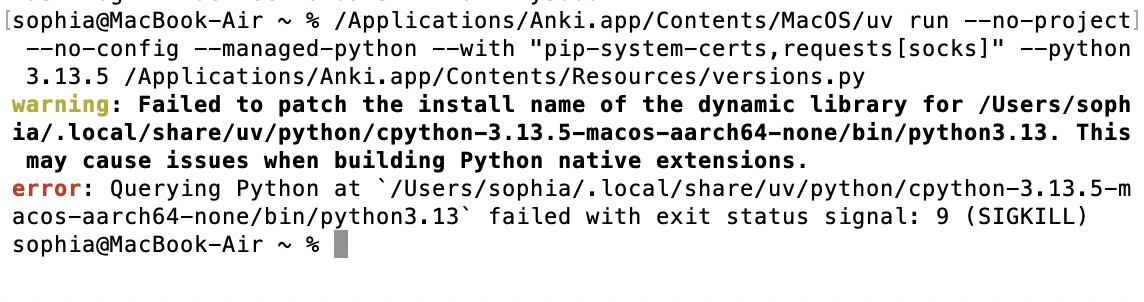
Could you please try directly running the command in Terminal, the command that the error message in your screenshot had said “failed to run”? This one:
/Applications/Anki.app/Contents/MacOS/uv run --no-project --no-config --managed-python --with "pip-system-certs,requests[socks]" --python 3.13.5 /Applications/Anki.app/Contents/Resources/versions.py
added: (That should be all on one line. The forum added a line break to word wrap the post, making it look like 2 lines.)
When I run it on my system, it runs okay and gives me quite a bit of output:
Possible troubleshooting activities I am thinking about:
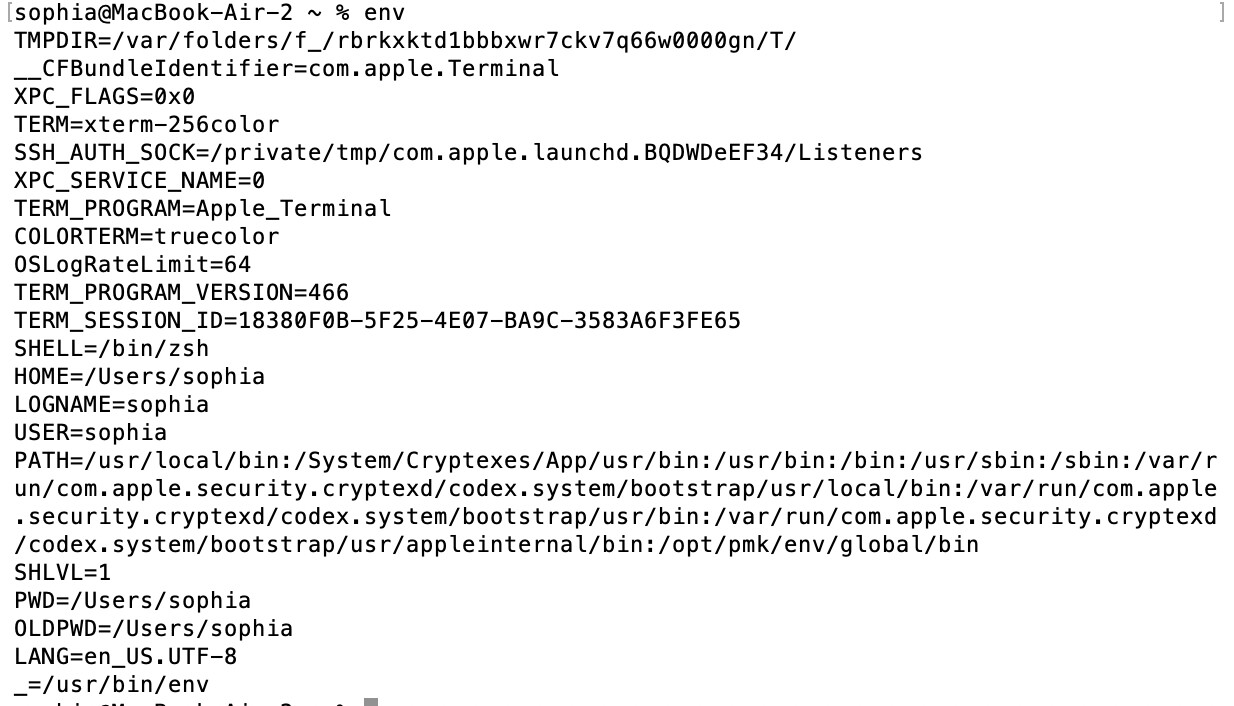
Checking the output of env to see if there might be incorrect python or architecture environment variables set. Something telling uv/python that it is an Intel system or to use Intel binaries. Or to check if there are any Conda/Anaconda/Miniconda variables set, suggesting that there is some conda variety installed and interfering.
Checking the PATH (echo $PATH) to see if there might be something incorrectly ahead in the path. (But, I think this is unlikely since which install_name_tool indicates that the correct file is being run?) Or, again to see if there might be a conda variety installed and being used.
(The actual command to delete the files would be rm -rf, but I’m using mv to rename the directory instead, in case we might want to restore it later. The sudo will require typing the administrator password to run the command and is required because the root user owns the CommandLineTools directory.)
Then, to re-install Command Line Tools, the command is:
xcode-select --install
That should cause a macOS GUI dialog to pop up asking you whether you want to install Command Line Tools.
I’m not sure why uninstalling and re-installing Command Line Tools would help, except that that other user said that it helped in their situation.
Edit: added: I suppose it could be that Intel-version Command Line Tools were previously installed, copied over to the new Apple silicon Mac, and then somehow not updated to the Apple silicon version and was now interfering with the uv command.
Another troubleshooting step I thought of was verifying that python3.13 is an arm64 binary and that it that actually runs when executed:
I did the uninstalling and re-installing Command Line Tools, and it worked!!! Thank you so much for all of your help. I can’t express my gratitude enough.
Thank you for doing all the work performing the troubleshooting steps to help find the solution. It will help others who experience that error message.
So, it appears that for Intel-based Mac owners who have Command Line Tools installed and then subsequently migrate to an Apple Silicon Mac, the migrated Command Line Tools don’t automatically get updated to the Apple Silicon version. Some Intel-version tools remain behind and somehow can cause the Anki uv “Failed to patch the install name” error. It is still unknown what specific tool or tools cause the error. However, uninstalling and then re-installing Command Line Tools fixes the problem.